.png?width=1536&height=1024&name=succurri_image_home_4(1).png)
Let’s Talk Tablets
Tablets are definitely becoming a staple in the consumer electronics world. For the longest time, the tablet PC was an expensive.
1 min read
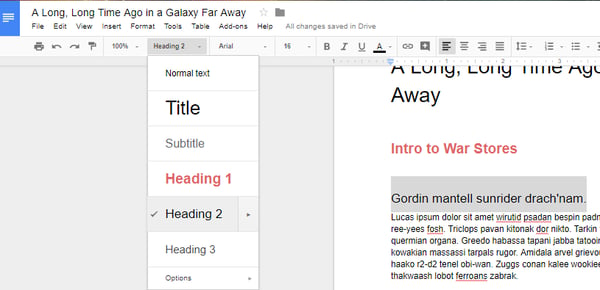
 In order to use the Table of Contents feature, you need utilize the preset heading and title formatting option. This can be found next to the font on the dashboard.
Note: Anything formatted as ‘Title’ will not be included in your table of contents.
In order to use the Table of Contents feature, you need utilize the preset heading and title formatting option. This can be found next to the font on the dashboard.
Note: Anything formatted as ‘Title’ will not be included in your table of contents.
 Heading 1 is used for major topic changes or phases, like chapters and sections.
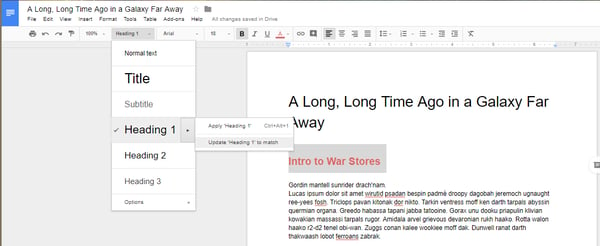 Even though they are set to be a commonly used heading size and font, you have the opportunity to update the size and header to whatever you want to use for your document by selecting to update heading. After updating the heading information, you’ll notice that the drop down menu has also updated the heading options to your selected format.
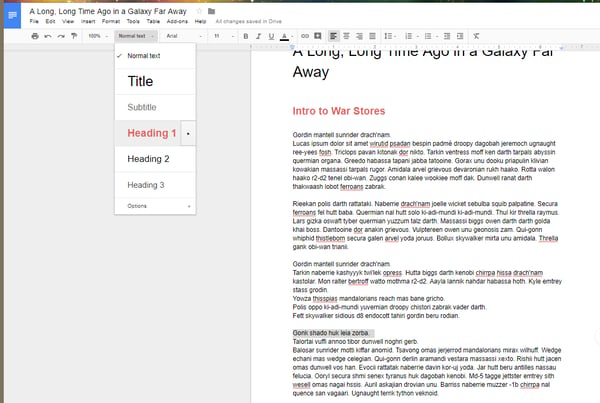 You’ll want to repeat the two previous steps for the other subheadings.
 When you’ve finished setting your headers, you can now tell Google Docs to generate a table of contents. Select
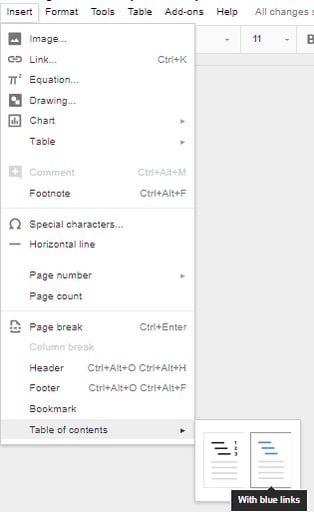
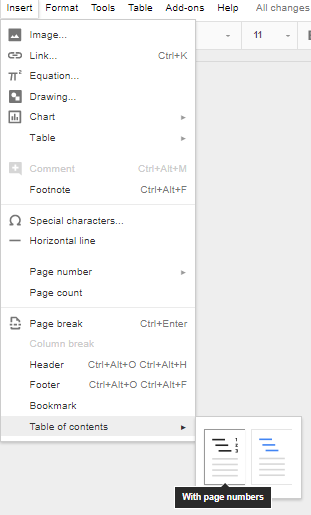
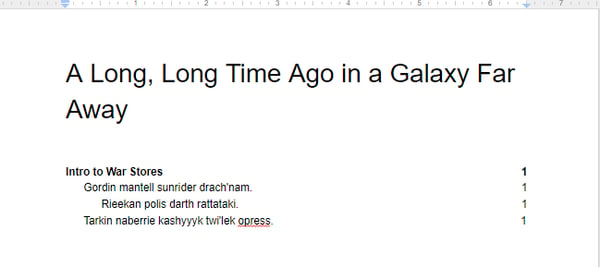
Insert > Table of contents then select the table style you like the best. You can select from a table with page numbers:
When you’ve finished setting your headers, you can now tell Google Docs to generate a table of contents. Select
Insert > Table of contents then select the table style you like the best. You can select from a table with page numbers:
 Or one with hyperlinks:
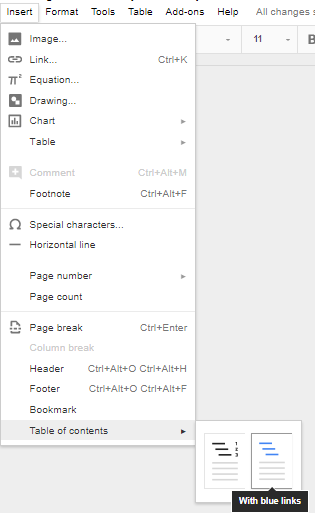
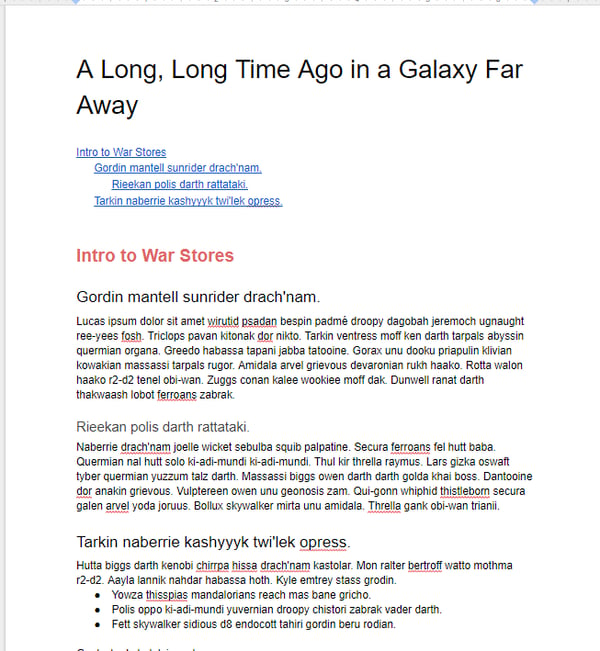 Whichever option you choose, you will now have a tiered, easy-to-navigate table of contents in your document. For more great tips and tricks that you can use to gain productivity, visit Succuri’s blog regularly.
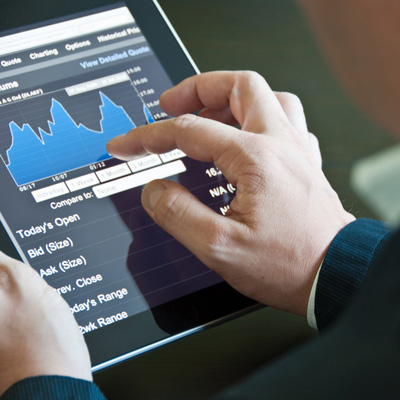
Tablets are definitely becoming a staple in the consumer electronics world. For the longest time, the tablet PC was an expensive.

Explore the NFL technologies many of us use daily, including tablets, electronic medical records, proactive IT monitoring, and more.

Generic IT was never built for specialty contractors. Here's what trade contractor IT actually requires and why most IT companies miss it.