






.png?width=1536&height=1024&name=succurri_image_home_4(1).png)
Why Is Information Security Important in an Organization?
Why is information security important in an organization? Read on to find out why and to learn what you can do to improve IT security in your...
2 min read
There is no denying that, of all the application suites in the world, Microsoft Office is the most famous and most popular. Regardless of their size, businesses rely on these programs in order to function–so much so, that a working knowledge of Microsoft Office is often a prerequisite for employment. However, despite so many people using these programs on such a regular basis, few understand their full capabilities. Take, for example, Excel, Microsoft’s spreadsheet program.

There are plenty of formulas that you can use to enhance your use of your spreadsheet. For starters, let’s review where these formulas should go, and how they should be formatted.
Using Formulas
Microsoft has made using formulas in Excel relatively painless. The process that follows identifies the individual pieces of an Excel formula and how a user can create essentially any formula they need.

Of course, knowing how to use formulas only comes into play when you have formulas to use.
Let’s go over some useful formulas to have up your sleeve as you use Excel.
Total to Find a Sum
=sum(cell1:cell2)
This action will add up all the cells in a given series. Including a colon in the equation tells Excel to include all the cells between the two in its calculation.
=sum(a1:a12)
If you select two cells in the same column, Excel will automatically include any cells between them. As a result, this equation would give the total of all numbers in rows 1 through 12 of column A.
Count Characters in a Cell
=len(cell)
Entering a specific cell into this formula will give you the total number of all letters, numbers, and other characters that are entered into the cell in question. This comes in handy when trying to complete a task with strict character limits, like creating content for Twitter. You can use this formula to ensure that your posts don’t exceed the 140 character limit Twitter enforces.
Calculating Percentages
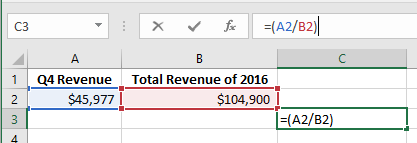
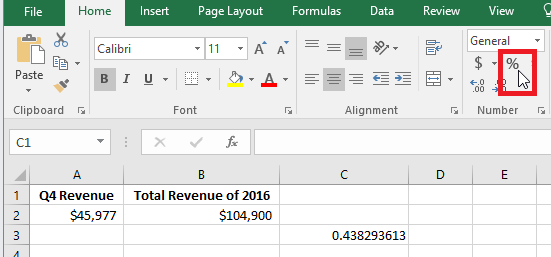
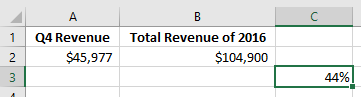
=(cell1/cell2)
This function gives you a quick percentage calculation based on your selected cells.
Excel also offers a few other useful utilities to make using it easier.
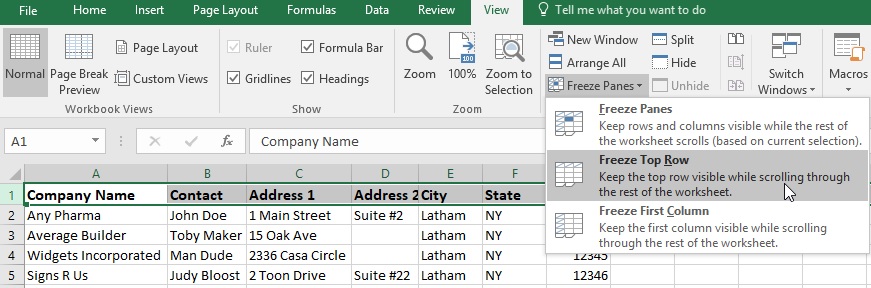
Freeze Panes
Freezing panes keep columns or headers from moving offscreen as you scroll through your spreadsheet, which comes in handy when working with a larger document.
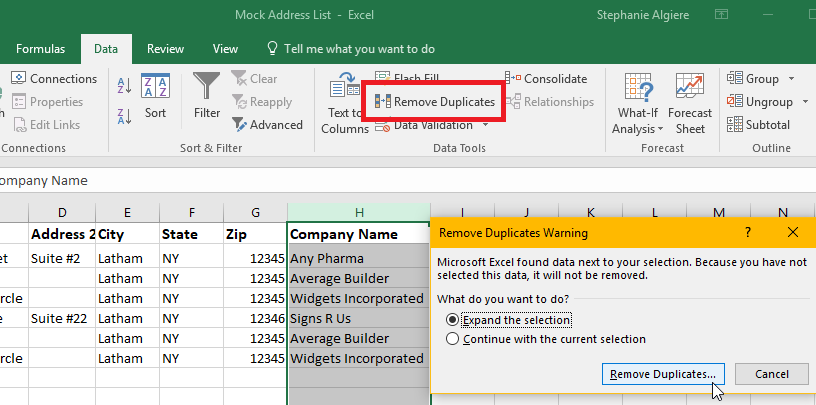
Remove Duplicates
If you have a row, column, or even a cell that redundantly repeats (and therefore adds confusion to your spreadsheet) this feature makes it easy to eliminate the extra copies. This could be useful when trying to merge mailing lists that have contacts that overlap.
Excel is designed to enable the work that can be done in a spreadsheet to be as comprehensive as possible, with shortcuts and functions to help conserve time and your team’s energy. This has just been a brief sample of how Excel can help make your business more efficient. For more tips and tricks, keep checking back to Succurri’s blog!

Why is information security important in an organization? Read on to find out why and to learn what you can do to improve IT security in your...
Discover the 4 Gmail-connected apps that can increase productivity, improve workflows, and simplify email management for your organization. Read more

In Microsoft Word, you can easily add watermarks to emphasize critical documents. Read more on how to generate and tweak watermarks to improve...