






.png?width=1536&height=1024&name=succurri_image_home_4(1).png)
What’s the Best Form of Authentication on Your Mobile Device?
There are now more ways to secure smartphones against unauthorized use. We’ll explore various options to determine the most secure method. Read more!
1 min read
There are times when using Microsoft Word that will require the addition of an outside element, usually something like an Excel sheet, PowerPoint slide or other visual aid. A common issue faced by users is having to significantly alter the size of the external element to fit between the margins of the portrait orientation, ultimately detracting from its impact.

Here is a quick example of an occasion where changing the orientation for a single page in a document might be of value.
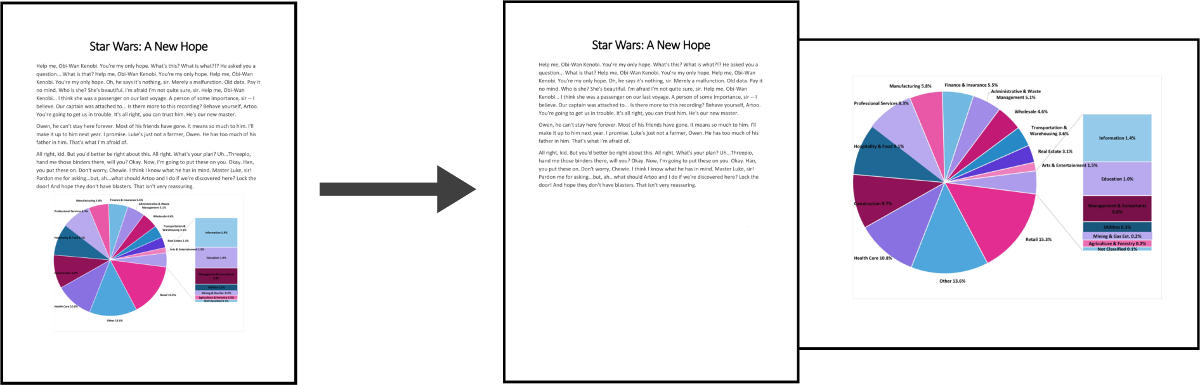
Begin by navigating to the page inside your Microsoft Word document that you would like to change the orientation of. Once there, make sure that your cursor is on the page.
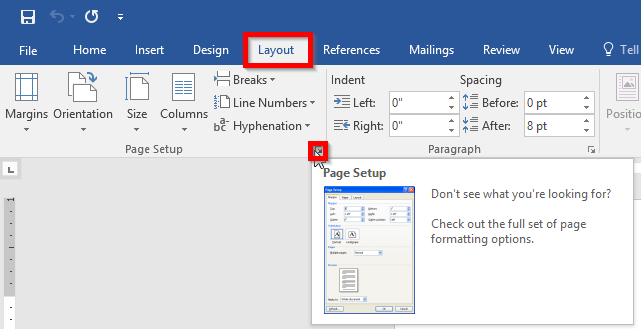
Open the Layout menu and click the button to expand the Page Setup submenu, as seen below.
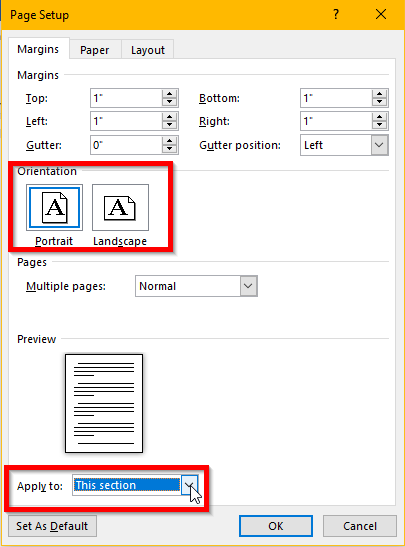
Next select the orientation you desire and select what you’d like it applied to using the drop down menu, as demonstrated. In this case, you’ll select ‘This section’. Click OK.
Looking for more tips, tricks and hints that will improve the way you and your employees make use of technology? Make sure you check back to Succurri’s blog every week for the latest and greatest IT how-tos!
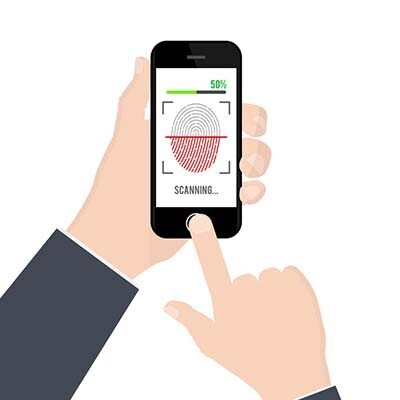
There are now more ways to secure smartphones against unauthorized use. We’ll explore various options to determine the most secure method. Read more!
The use of a browser’s tabs has become the default way that many people move around the web. Read more on how to manage them efficiently.

Mobile devices have countless uses, all of which enable users to get the most out of them. Read more on finding a fraudulent app on the Google Play...